After waiting a few days to collect my thoughts on the iPad I feel as though there is a missed trick with the iPad. Maybe this is just down to the fact that deals could not be done or that I was just merely way off on what I thought the iPad would do.
I love the iPad even though it makes no real sense for me to actually get one, I have an iMac in the loft, use a MacBook Pro every day and it pretty much is my main machine an iPhone and finally and AppleTV but I still want an iPad! Do I really need an iPad though?
Some of the things that I feel the iPad should of had :
1. Flash Support
Yes, Flash. So many people claim that Flash is evil but a hell of a lot of websites are utilising Flash and what’s more if this device is supposed to be the “best way to experience the web” then it should be supported on the iPad. With so many people using Facebook and playing the games on there the iPad would of made and ideal device to play some of those games, oh wait maybe thats part of the issue – reduced revenue 😉 This is quite funny http://theflashblog.com/?p=1703
2. Lack of Camera
Again this is something I was so looking forward to the iPad having. Imagine being able to sit on the sofa and have a video chat with relatives using iChat or even Skype. I think this is an oversight by Apple. I bet it comes in a later version of the iPad which is making me wonder, should I actually wait before getting one?
3. Newspaper and Magazine Subscription or content.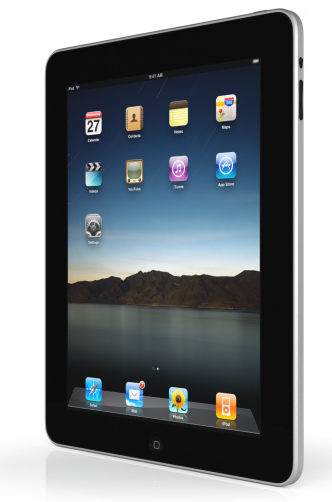
This I thought was coming, ok well yes there is the New York Times application for it but I was expecting more. I was expecting or maybe hoping that some other newspapers and magazine publishers would have been announcing applications too. Check out this for an example of what I was hoping for : http://www.youtube.com/watch?v=ntyXvLnxyXk (Sports Illustrated – Tablet Demo). Macworld, Macuser, Stuff, T3, Maxim and other similar magazines. Say they do a review of a product, they could include a video of the product etc or a behind the scenes of a photoshoot! This would be fantastic.
Probably not going to happen in the forseeable future though, this is what Macworld stated when I asked about an interactive version of their magazine “That would be great but its likely not going to happen in the near future” – oh well.
So, if I actually got an iPad what would I use it for that I cannot already do on one of my existing devices. Well nothing really lol.
However this is what I love about the iPad :
Photos
Looking at the video of this feature I think this will be a fantastic way of showing your family and friends your family photos, well those that WANT to see them of course 😉
Watching
I would probably watch a lot more downloaded content than I do now.
Reading
I don’t read many books as I read a lot online. I think sitting in front of a computer is too impractical and lying in bed reading an eBook on my MacBook Pro is simply not ideal. However, I can see me reading a lot more on an iPad simply due to how easy it would be and the experience should be great.
Playing
I love the gaming experience on my iPhone and this would be even better on the iPad as the real estate on the screen is way more than the iPhone. I am really looking forward to seeing how my favourite games on the iPhone look and perform on the iPad, especially from those developers that will optimise their games for the device.
Cost of the iPad.
Although the UK price of the iPad has not been announced Macworld suspect that the prices will be
WiFi Only
16GB – £388 32GB – £510 64GB – £591
WiFi + 3G
16GB – £490 32GB – £612 64GB – £693
Person
ally I cannot see the point of a 3G version of the iPad for my use. I have an iPhone so if I do want to do web surfing on the go then I will use that and I simply cannot justify paying for a data plan for this device. So that rules out the 3G versions. Without seeing the final pricing of the devices I will probably go for the 32Gb WiFi version and hoping it will come in under the £500 mark.
All in all I am happy with the iPad and will definitely be getting one, the question is do I wait for the version with a camera or do I buy early – anyone who knows me will know the answer to that lol.